 Ratatype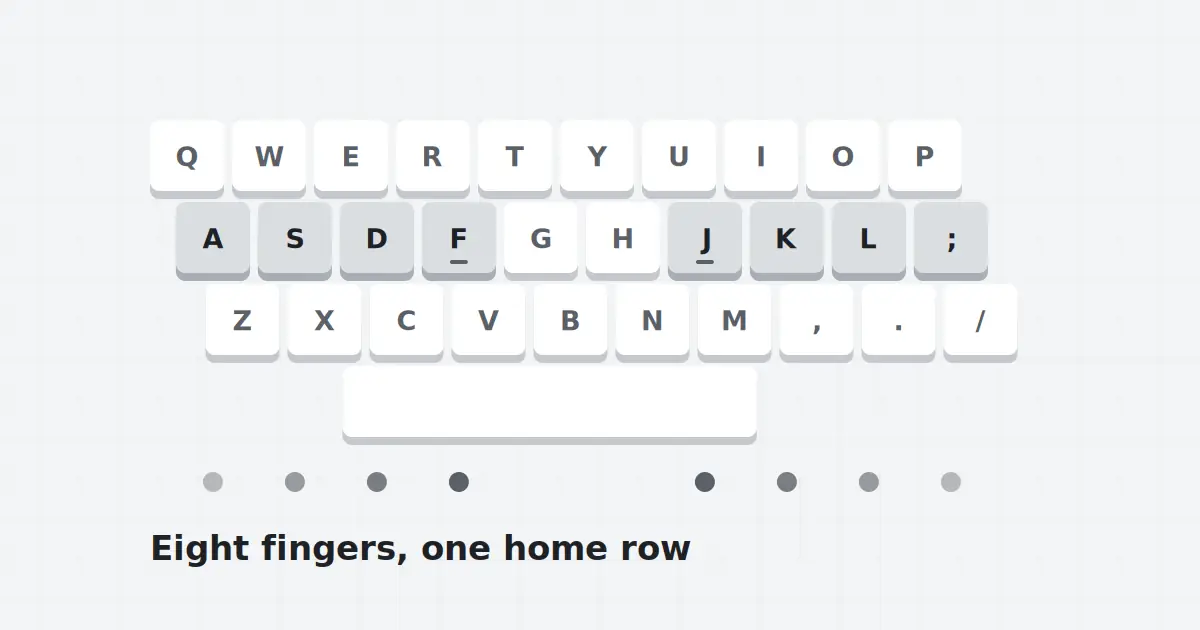
Touch typing works because each finger owns a small group of keys. When every finger stays in its lane, your hands never need to search, and your eyes can stay on the text. The home row is where that system begins.
The eight resting keys
Place your left fingers on A, S, D and F, and your right fingers on J, K, L and the semicolon. Your index fingers sit on F and J, which have small raised bumps so you can find them without looking. Both thumbs rest lightly over the space bar.
Who presses what
- Left pinky: Q, A, Z, plus Tab, Caps Lock and left Shift.
- Left ring: W, S, X.
- Left middle: E, D, C.
- Left index: R, F, V, T, G, B. It covers two columns.
- Right index: Y, H, N, U, J, M. Also two columns.
- Right middle: I, K and comma.
- Right ring: O, L and full stop.
- Right pinky: P, semicolon, slash, plus Enter, Backspace and right Shift.
Return after every key
A finger reaches up or down, presses, and comes back to its home key. That return is what keeps your hands calibrated. If you leave your hand floating near the top row, the next key will land in the wrong place.
Common mistakes and fixes
Using the index finger for everything
Many learners let the strong index fingers take over keys that belong to the middle or ring finger. Slow down and say the finger name in your head for a day or two. It feels silly and it works.
Wrist resting on the desk
Anchoring the wrists makes the reach to the top row awkward. Keep the wrists slightly raised and let the fingers do the travel.
Shift with the same hand
For a capital letter on the left side, hold the right Shift, and the other way round. Ratatype exercises include capitals so you will practise this naturally.
Spend a few sessions on nothing but home row drills. When those keys feel boring, you are ready for the rest of the keyboard.
Keep reading
How to take the Ratatype typing test
A typing test is a snapshot, not a verdict. Here is how to get a result that shows your true level.
Read full guide
Earning a Ratatype typing certificate
A certificate turns your practice into proof. Here is how to prepare for it and where it is useful.
Read full guide
How to increase your typing speed (WPM)
Speed is not about moving your fingers faster. It is about removing the pauses between keys.
Read full guide